New UX Announcement – Summary.

Antigro Designer Print Customizer is constantly being developed, and we make every effort to make it as easy as possible for our clients’ customers to create designs, thereby increasing sales conversion. Recently, many significant changes have been introduced, and in this article, we present a summary of the latest improvements made to further simplify the creation of personalized items.
Overall Look of the Tool
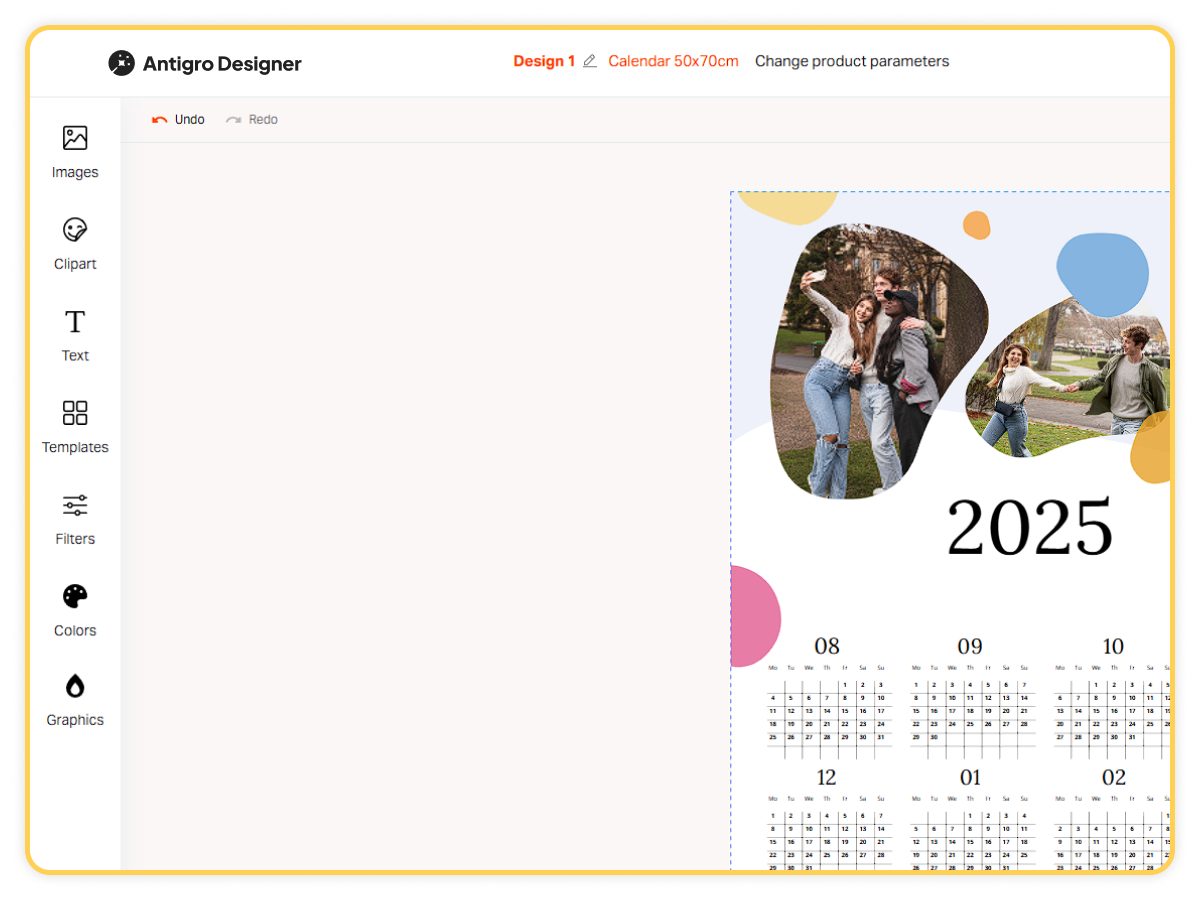
For greater user convenience, visual changes have been introduced to the interface. Individual tabs are now wider and more transparent in layout, making navigation clearer and easier. Users also have the option to close individual tabs, allowing them to personalize their workspace according to their preferences.
On the store side, for shops offering products personalized with the Antigro Designer print customizer, it is now possible to set the order of tabs on a per-product basis. This gives merchants more control over the presentation of customization options, ensuring that the most important or frequently used tabs are displayed first for each product.
Adding Graphics to the Project
Adding photos to the project now takes place in a separate section of the screen. While the images upload in the background, users can continue working on the project without waiting. The upload progress bar has been visually enhanced and now displays the upload percentage in a smooth, modern way.
Auto-Filling
After uploading photos, placing them on the template is now much more convenient for users. For templates with multiple photos, the auto-fill design feature significantly speeds up the process and, according to customers, is highly useful. Based on the automatically generated project, they can then adjust any details if needed – but the overall design is created much faster.
Manual Photo Filling
The manual process of adding photos to a design has been greatly improved. Users can now sort photos by the time they were uploaded to the project or by the date they were taken. Sorting is even more convenient with the option to hide photos that have already been used in the project, helping to avoid duplicates – this option is now enabled by default.
For greater clarity when creating a project, hovering over a photo enlarges it, making it easier to preview and decide where it should be placed. Users simply click on the desired photo, and the system automatically inserts it into the next available image slot, starting from left to right. In templates with multiple photos, the order of filling image slots follows a left-to-right, top-to-bottom sequence.
Removing photos from an image slot has also been simplified. Clicking on a photo now displays an icon that allows customers to delete it if its position in the design is not satisfactory. Alternatively, clicking an image slot again removes the photo from it entirely.
Editing Images
For clients creating designs in the Antigro Designer Print customizer, editing and cropping images has become even more intuitive. Photos can be repositioned simply by grabbing them in the center and dragging them to the desired location. When an image is moved beyond the boundaries of its slot, a shaded area appears to indicate which parts will be trimmed once placed. A single click on a photo also reveals quick options to rotate it, as well as to adjust its size by enlarging or reducing it.
In the mobile version, added images are displayed in a bottom bar that can be freely expanded and collapsed so it does not cover the project. Changes to the project can be made through the navigation tabs displayed at the bottom of the screen, which can be expanded to any height depending on the user’s needs.
Objects adjustment
The tool lets users align objects in their design to the center or to specific areas, such as outlines and safety margins. Helpful guide lines appear automatically, making it simple to position and adjust objects with pinpoint accuracy. Thanks to navigation improvements, it’s now easier to zoom in and out, as well as stretch or resize objects, either vertically or horizontally, within templates or for any added clipart. A convenient handle appears for moving an object, allowing users to reposition it freely. Handles are automatically hidden when the element is small, so they do not cover the graphic, and in that case, users can simply press and hold anywhere on the object to move it.
Users can also duplicate objects, move them freely, rotate, and align them to the top, bottom, middle, left, right, or center of the page. Changing object layers is quick and intuitive, giving full creative control over the layout and helping achieve a clean, professional design in less time.
Photo Layouts
When the layout template is changed on a given page, the photos arrangement already set on that page are preserved. This makes the workflow easier and faster, as clients can change the layout without losing their previously created work. This means that when, for example, a user applies a template with four photos to a page, then changes the layout to one with three photo slots, and later switches back to a layout with more slots. The system remembers which photos were used and, when the number of image slots increases, places the previously used photos back into them.
Additionally, in projects with multiple elements, it is now possible to select several objects at once in order to move or delete them, which significantly speeds up the design process.
The page editor and navigation between individual pages have been improved to make project management more intuitive. Users can now easily change the order of pages by dragging them, as well as add new pages in specific locations by clicking the plus icon. Clear instructions are provided for removing pages – for example, in a photo book, a message informs users that pages can only be removed in sets of four so that the total number of pages remains divisible by four. These clear guidelines, combined with the system’s safeguards, ensure that even with user-made changes, the final files will always be print-ready and fully compliant with specifications.
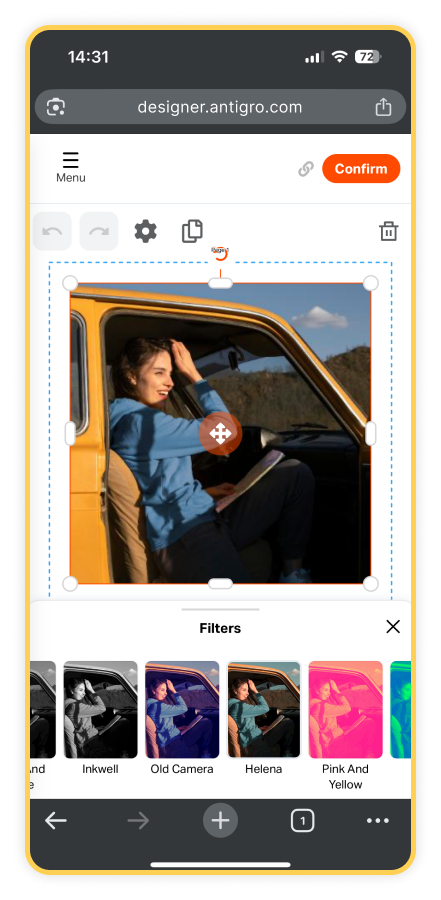
Photo Filters
The filter tab has been updated and visually changed in such a way that adding filters is now even more convenient. This is most noticeable for customers using the mobile version of the tool. The new layout makes navigation smoother and reduces the number of steps needed to apply filters. As a result, users can customize their design faster and with less effort.
Calendar Personalization Module
In calendars and other products containing the calendar module, it is possible to personalize this element. Following recent updates, the calendar personalization module is located in a clear tab on the left side of the screen, while in the mobile version it can be found in a drop-down panel at the bottom of the screen. In the first tile, users can easily enter the event name, then select the date and the color to highlight it, as well as choose a symbol to mark the date and customize its color. All changes are instantly reflected in the project preview.
Color Personalization
Depending on the template and the seller’s preferences, the colors of various elements in the design can be edited by customers. Adjusting the colors of text, graphics, and backgrounds is made simple through a clear and intuitive color palette. For users who wish to match an exact shade, it is also possible to enter a specific color in HEX format.
Mobile Customization Made Easy
- Photo auto-fill – A major time-saver for mobile users. Customers can quickly select photos from their device, have them automatically placed into the project, and fine-tune as needed.
- Mobile-friendly photo editor – A collapsible bottom toolbar keeps tools accessible without blocking the project view.
- Live preview – Users can see every change in real time, with no screen reloads.
- Simple, intuitive interface – Wide tabs, clear icons, and smooth navigation make the design process effortless.
- Photo filters – Mobile-optimized filter selection helps users quickly find the look that fits their style.
Realistic Product Preview

As a final finishing touch, the Sticker Builder tool by Antigro Designer can display your customer’s completed product design in a realistic mockup. For example, a custom sticker may appear as if it’s already applied to a laptop, giving them a true-to-life view of the final result. Depending on the project’s dimensions, the preview automatically adjusts to fit the mockup template, ensuring accurate proportions and scale. In the final step, customers can also add comments or notes to their project before submission.
Request a demo to transform your printing business
Join the printing revolution trusted by hundreds of companies worldwide.